
Risk Intelligence
SoterAI's Risk Intelligence layer transforms your organization's safety data into actionable, forward-looking insights. It continuously ingests incident records, hazard inventories, controls, and related documentation to generate dynamic risk scenarios tailored to your operations, environments, and teams.
Why Risk Intelligence Matters
Proactive Prevention — Instead of reviewing past incidents, Risk Intelligence forecasts "Next Incident Likely To..." so you can address emerging hazards before they lead to injury.
Contextual, Data-Driven Insights — Combines your internal data (incidents, hazards, controls, procedures) with external standards to highlight missing or ineffective controls in the precise context where they matter.
Agentic AI Integration — Supports SoterAI's agentic workflows and Chat Assistant by providing up-to-date scenario inputs — enabling automated corrective-action plans, inspection workflows, and report generation.
Step 1 — Upload Your Data
Risk Intelligence is powered by the files you upload in Data Sources. The more relevant data you provide, the more accurate your risk scenarios will be.
Supported file types: DOC, DOCX, PDF, XLSX, XLSM, XLS, CSV, PPT and PPTX, up to 200 MB per file.
What to upload: incident logs, hazard inventories, control checklists, safety procedures, and policy documents.
How to upload
- Go to Data Sources in the left navigation and select the Internal Data tab.
Only files on the Internal Data tab feed into Risk Intelligence. Files on the External Data tab are used for compliance checks only.
- Click Upload data (or drag and drop your files).
- In the Upload Files window, select your file(s) and click Upload.
Step 2 — Process Your Files for Risk Intelligence
Uploading a file does not automatically make it available to Risk Intelligence. You need to explicitly process each file.
📊 Intelligence Credits: Processing a file extracts Risk Intelligence records from it — each record consumes one Intelligence Credit from your organisation's allowance. A single file may contain multiple records. Enterprise plans include 50,000 credits by default. To check your current usage or understand your limits, see Monitoring your Intelligence Credits.
- Once your file appears in the folder list, locate it and click its Process icon (circular arrow).
- While processing runs, the icon animates.
- When complete, the file status switches to Enabled — it is now indexed and available in Risk Intelligence.
Tip: Processing is optional per file. Only enable it for documents you want to contribute to your Risk Intelligence insights. General reference documents that don't contain incident or hazard data do not need to be processed for RI.
What happens during processing
SoterAI runs OCR, parsing, and indexing on your file. It extracts discrete incidents, hazards, and controls, then merges these into a unified risk register. Scenario scores are then continuously recalculated using a model trained on over 20 million industry data points and global safety standards.
Step 3 — Managing Your Data Sources
Disabling a file (without deleting)
If a document becomes outdated or irrelevant, you can disable it without losing its metadata:
- Locate the document in its folder.
- Click the Disable action.
The file remains in your repository but is excluded from all AI operations. To re-enable it, click Enable on the same file.
Deleting a file
- On the Data Sources screen, find the document.
- Click the Delete action (or the three-dot icon → Delete).
- Confirm the deletion.
Deletion is permanent and cannot be undone. Only delete content you are certain is obsolete.
If a file shows an Error status
- Delete the file using the three-dot icon → Delete.
- Verify the file meets the maximum size limit and is a supported file type (shown in the upload window).
- Upload it again.
Step 4 — Exploring the Risk Intelligence Dashboard
Once your files are processed, go to Risk Intelligence in the left navigation to view your scenarios.
The main view displays:
- Top Risk Scenarios — "Next Incident Likely To..." ranked by combined likelihood × severity
- Risk Trends — Charts of incident counts, control gaps, and risk score distributions over time
- Control Effectiveness — Summary of which controls are in place versus missing or inactive
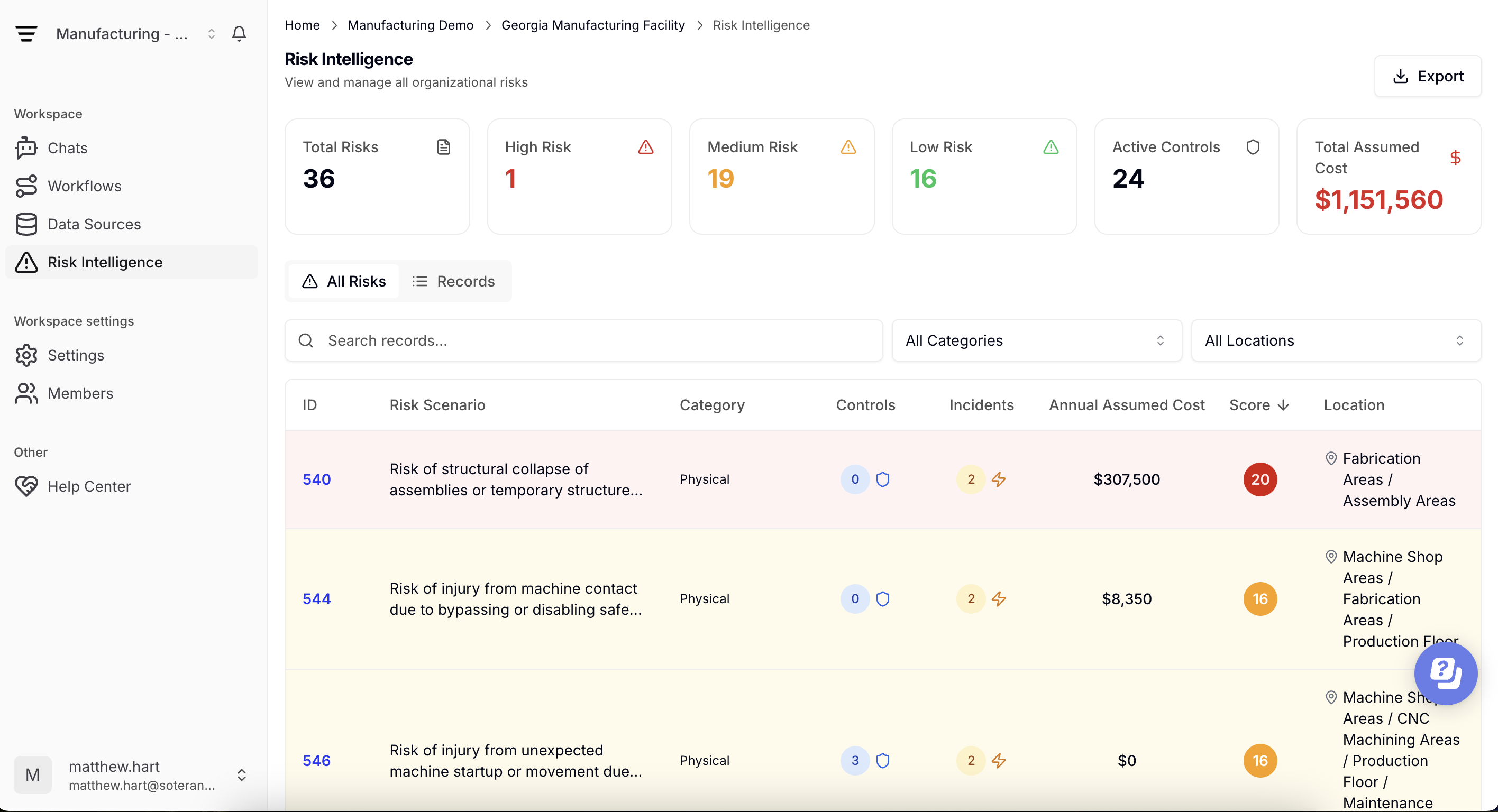
Filtering and sorting scenarios
Use the toolbar to refine your view:
- By Location or Site — isolate one facility or compare multiple areas
- By Hazard Type — focus on specific risk categories (e.g. chemical, ergonomic)
- By Control Status — show scenarios where required controls are missing or inactive
- By Date Range — view emerging risks over the past week, month, or quarter
Combine filters to hone in on the most relevant scenarios for your team.
Exploring a scenario in detail
Click any scenario to open its detail panel:
- Underlying Data — the incidents, hazards, and controls that contributed to this scenario, with links back to source documents
- Risk Score Breakdown — how frequency, severity, and control effectiveness combine into the overall score
- Recommended Actions — ask in the Chat what actions are recommended to reduce the risk exposure level
Step 5 — Acting on Scenarios
Exporting
- Download scenario lists or full detail reports as XLSX or CSV
- Share direct dashboard links with colleagues (respecting their role permissions)
Using Risk Intelligence in Chat and Workflows
Risk scenarios feed directly into SoterAI's Chat Assistant and agentic workflows. You can ask questions like:
- "What's the highest-risk scenario at Site A this month?"
- "Summarize all scenarios missing fire-suppression controls."
Workflows can also reference Risk Intelligence automatically:
- Corrective Action Tasks — pre-load top control gaps into your action-assignment workflow
- Targeted Inspections — trigger inspection workflows focused on high-risk scenarios
- Reports — embed scenario summaries into audit and compliance reports with a single click
Best Practices
- Keep data current — Re-upload and re-process incident logs regularly so scenarios reflect your latest data.
- Use the Internal Data tab correctly — Misclassifying files (e.g. putting incident data on the External Data tab) means it won't feed into Risk Intelligence.
- Weekly reviews — Make a quick scan of top scenarios part of your routine to catch emerging hazards early.
- Assign follow-up tasks — Use the scenario detail panel to assign corrective actions directly to team members.
- Monitor trends — Use the Risk Trends charts to spot shifts in hazard profiles or control effectiveness over time.
Was this article helpful?