
Using the SoterAI Browser Extension
The SoterAI Browser Extension carries what you worked out in an AI chat to the next web form you fill in. Copy saves the chat in your browser. Paste fills the form with what matches and tells you what it left for you.
Get it on the Chrome Web StoreGoogle Chrome on a computer
Chrome version 116 or later. The extension is not available for other browsers or for phones.
A SoterAI account
Copy and Paste use your SoterAI account, and the account needs access to them. If the card says No access yet, ask the SoterAI team.
Signed in at ai.soter.com in the same browser
The extension has no login of its own. It uses your ai.soter.com sign-in in the same Chrome profile.
Install the extension
Open the SoterAI Browser Extension on the Chrome Web Store and add it to Chrome.
At install, it gets access to ChatGPT, Claude and ai.soter.com. Other sites stay off until you open the card there yourself (see step 4).
Its toolbar button shows the tooltip Open SoterAI. If you have not pinned it, you will find it in Chrome's Extensions menu.
Sign in at ai.soter.com
Open ai.soter.com and sign in, in the same Chrome profile. Copy only works while you are signed in.
If you open Copy while signed out, the card shows Sign in to SoterAI. Click Open ai.soter.com, sign in, then come back to your tab. The card checks again when you return, so there is nothing else to click.
The extension does not refresh your sign-in. If it lapses, open ai.soter.com again.
Copy from a chat
On ChatGPT, Claude and SoterAI, the SoterAI card appears by itself at the top center of the page. It has three buttons: Copy, Paste and a close button (X). When you click elsewhere it folds into a small pill. Hover over or click the pill to open it again.
- Open the chat you want to carry. If the AI is still answering, wait for it to finish.
- Click Copy. The panel Copy from this page opens.
- Click This conversation.
- When the card shows Copied with source context, or Copied with a number of details, you are done. The number on the Copy button shows how many details you are carrying.
Click Show what I’m carrying to look through the details before you use them.
Copy on another site
On a site you allowed (or opened with a toolbar click, see step 4), click Copy, then This page. It saves the readable page, the details the page labels itself, any filled form fields, and the page's title and address.
Add a text selection
Select text on the page, click Copy, then Your selection. The selection is added to what you carry, word for word. It never replaces your copy.
You carry one copy at a time, and it is the same in every tab. Copying a chat or page again asks Replace what you’re carrying? Click Replace or Keep carrying. Your current details stay saved until the new copy succeeds.

Paste into a form
Bring the card to the form
Open the form or portal. On a site you have not allowed, the card does not appear by itself. Click the extension's toolbar button. The card opens on this page for this visit only.
To have the card on that site every time, open the Paste panel while you are carrying a copy (the line does not show when there is nothing to paste). At the bottom it reads Showing on this page only · always show on followed by the site's name.
- Click always show on and the site name. The extension's settings open in a new tab.
- Click Enable on this site.
- Allow access when Chrome asks.
The settings tab closes itself. From your next visit the card appears on that site by itself, including after you restart Chrome. The card already open may keep saying Showing on this page only until you reload the page. Access applies only to that site, until you remove it.
Fill the form
- Click Paste. The Paste panel opens with your copy's title, how many details it holds and where it came from. You can open Source & context or search the details first.
- Click Fill this form. While Paste works, the button reads Pasting…, and Matching… while it waits for SoterAI to match the fields that are left.
- Check every field, then submit the form yourself.
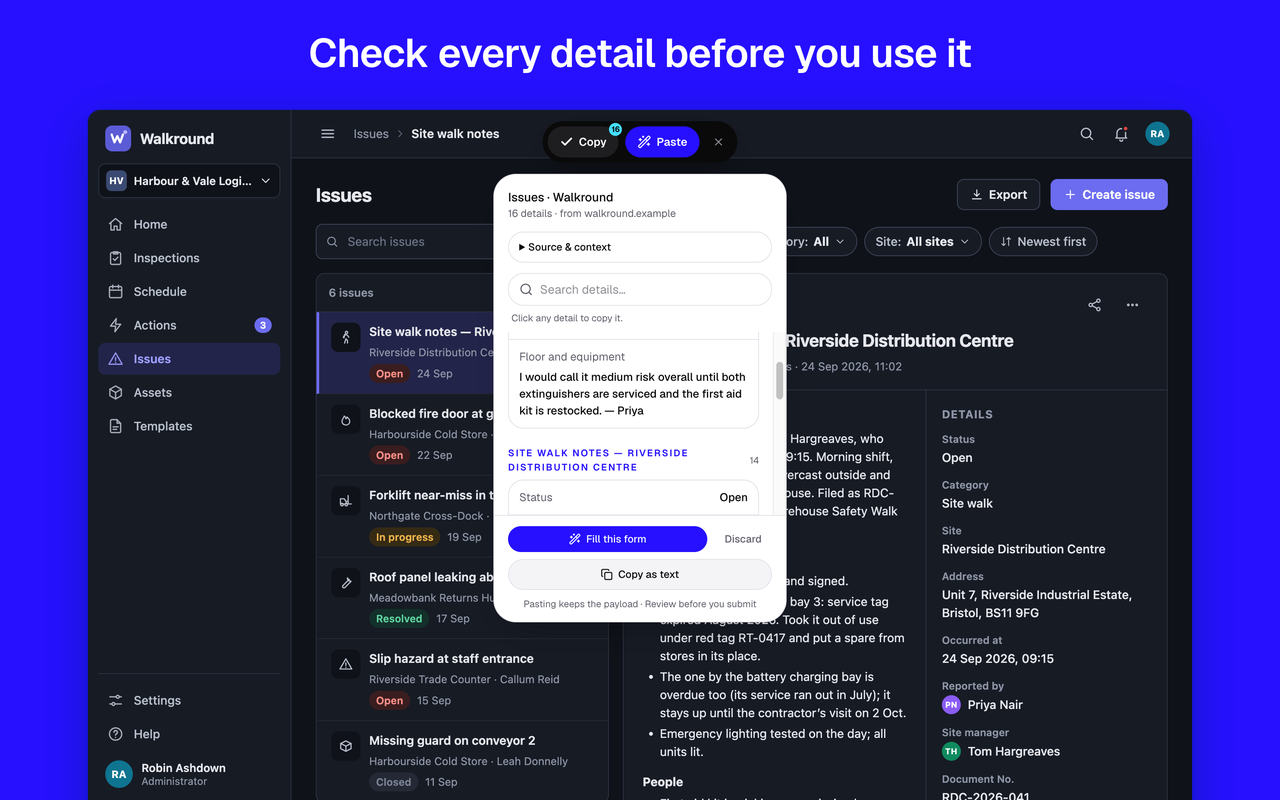
What happens when you click Fill this form
- Paste reads the form and first fills, on your device, the obvious matches from your saved details.
- If fields are left, it asks SoterAI to match the rest. Only empty fields are asked about. Boxes marked for office use, and the site's own search, menu, header and footer boxes, are left out.
- It writes only values it can trace to a saved detail, or to a word-for-word quote of your copy. Every quote is checked against your copy.
- It then fills embedded forms on the page that it can reach.
- Each filled field gets a blue ring, and the panel shows a badge such as 18 filled.
- On a long form, matching can take a while. One Paste ends within about two and a half minutes.
The panel's footer reads Pasting keeps the payload · Review before you submit. Your copy stays after Paste, so you can paste it into another form.
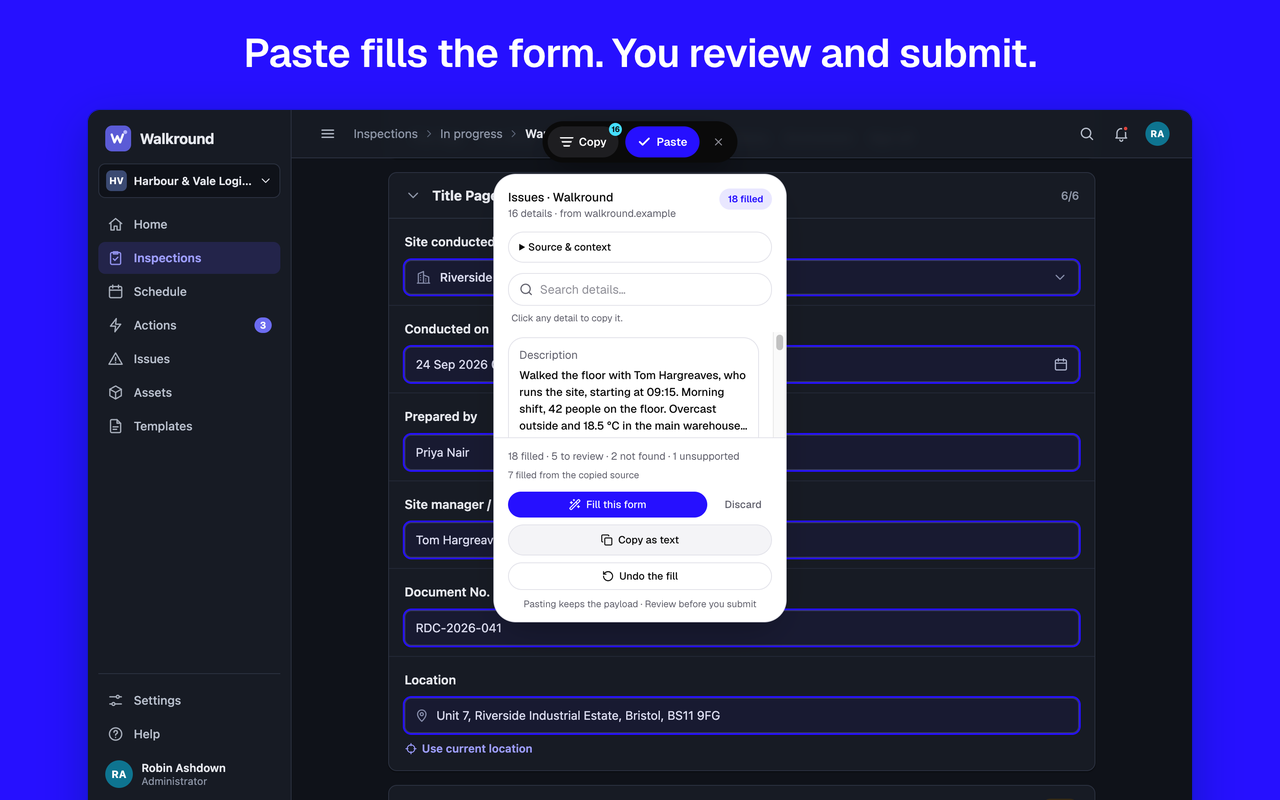
Reading the Paste summary
After a fill, the Paste panel counts what happened, for example 9 filled · 2 to review · 1 kept · 3 not found. The filled count always shows. The other counts show only when they are above zero.
| Count | What it means |
|---|---|
| filled | Filled by Paste |
| to review | Marked on the page for you to choose |
| kept | Already had a value, so Paste left them |
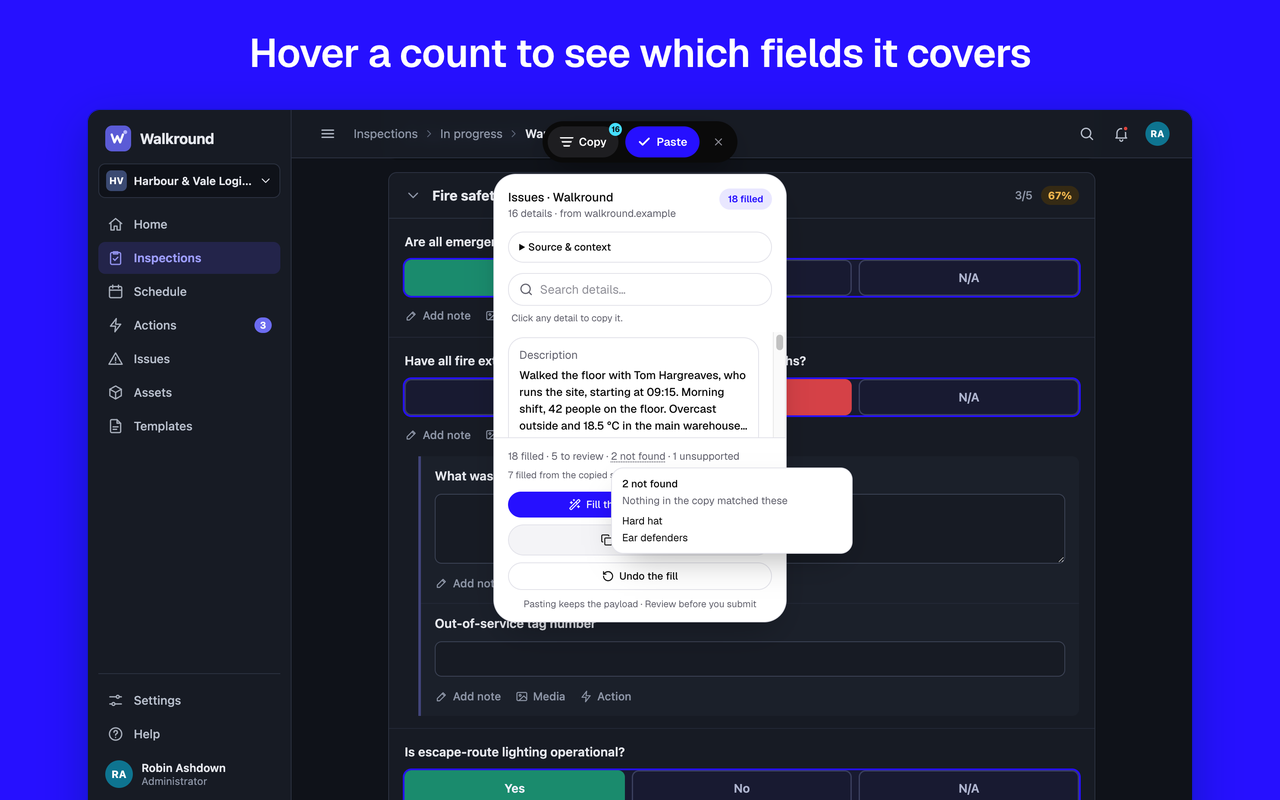
| not found | Nothing in the copy matched these |
| unsupported | Paste couldn’t fill these |
To see which fields a count covers, point at it, move to it with the keyboard, or click or tap it. A list opens with the field names as the page shows them. A field with no visible name shows as Unnamed field. Some names carry a reason, such as no option matched or control not supported. Press Escape to close the list.
A line such as 7 filled from the copied source counts values quoted from your copy rather than taken from a saved detail.
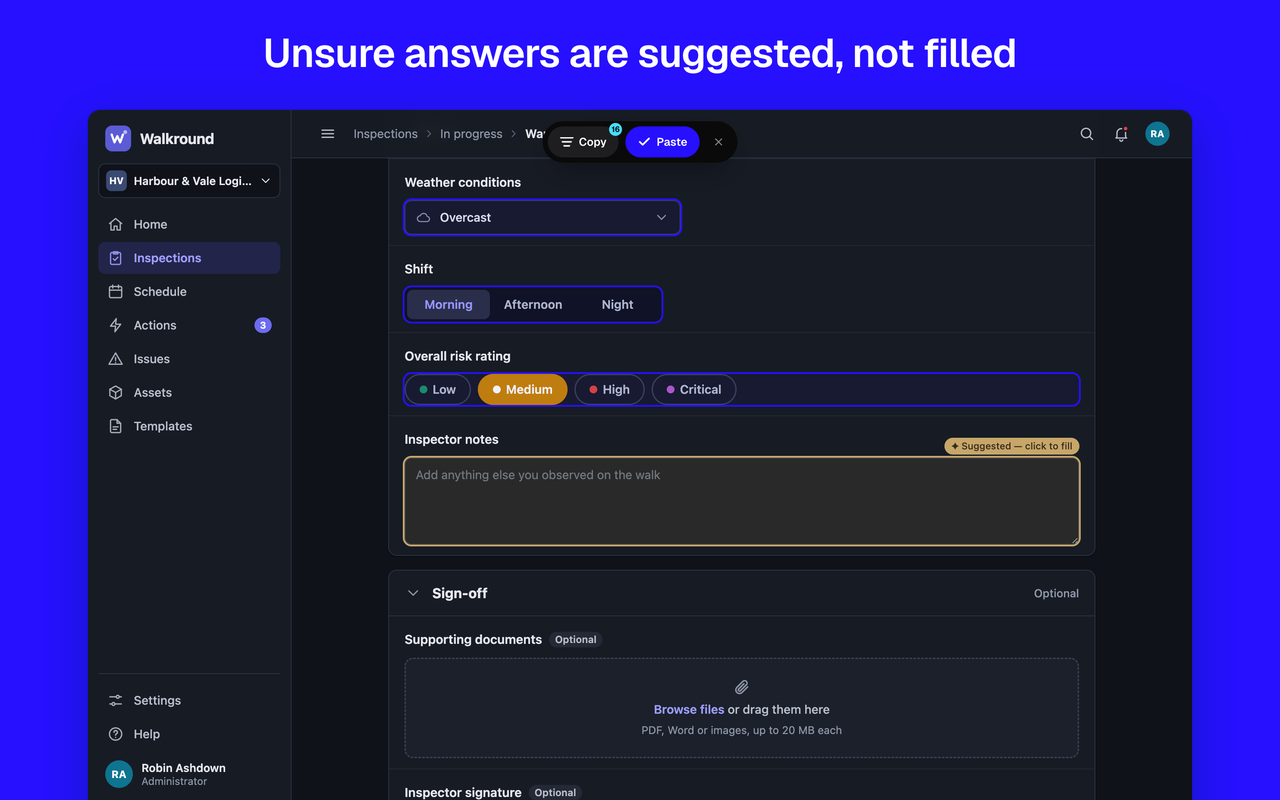
Suggestions and Undo
Suggested fields
When Paste is less sure of a match, it does not fill the field. It marks it with a gold tag, ✦ Suggested — click to fill. For a choice or checkbox, the tag names the value it would fill: ✦ Suggested: value — click to fill. These count as to review.
Click the tag to fill that one field. Its ring turns blue and the summary updates. A suggestion never fills by itself. These are always suggested, never filled:
- a choice or checkbox that cannot be traced to your copy;
- a value that several table rows share;
- a quote from your copy for a field that says where a payment goes, such as payee, remit-to, bill-to or bank details.
Undo the fill
Click Undo the fill in the Paste panel to put back what Paste wrote, on the page and in embedded forms. Any field you changed since the fill stays as you left it.
Some fields, such as custom dropdowns, cannot be put back. Undo then tells you, for example 1 field could not be undone. It is still marked on the page — clear it by hand.
Marks on the page
If the page itself empties a field after Paste wrote it, the field is marked ! This page cleared it.
The marks on the page stay until you undo, close the card or paste again. Closing the card with X folds it and clears the marks, but it does not undo any values.
What Paste never does
- It never submits or sends. Paste never submits a form, never clicks a button and never presses send.
- It never overwrites. A field that already has a value is left alone and counted as kept. So is a field you type into while Paste is working.
- It never fills sensitive fields. That means password, file-upload and hidden fields, fields the page marks for card numbers, security codes, expiry dates, passwords or one-time codes, and any field whose label or name mentions things like a PIN, Social Security number, passport, driver's license, national insurance, tax ID, bank account or routing number, sort code, IBAN, card number, date of birth, or medical and health records.
- It holds back secrets it can recognize. Paste will not copy a value from your copy that looks like a card number, a US Social Security number, an API key or another long access token into a form.
Pasting into an AI chat
On ChatGPT, Claude or SoterAI, the Paste panel's main button reads Insert into chat. It places your copy in the message box, in front of anything you have already typed. The text starts with Context from SoterAI Browser Extension and your copy's title.
The card confirms Composed into the text box — you press send. It never sends the message for you. This works without sign-in and sends nothing.
Other ways to use your copy
- One detail. Click any detail in the Paste panel to copy its value, for a field Paste could not fill. The row shows Copied.
- Copy as text. On sites other than ChatGPT, Claude and SoterAI, this copies your whole copy to the clipboard as readable text.
Privacy, in plain words
- Copy sends nothing. It reads the page or chat in your browser and keeps one copy in Chrome's extension storage. It calls no AI model.
- Nothing is sent before you press Paste. On ChatGPT, Claude and SoterAI, a small script keeps, in memory only, the conversation data the site itself downloads, so Copy can save it. It makes no requests and stores nothing.
- What Paste sends. Only when you are signed in, and only if fields are left after the matches made on your device, Paste sends your copied text with its title, address and site, your saved details, and the form's titles, headings and field descriptions (labels, hints, nearby text, placeholders, field names and list choices). A long copy goes in up to five parts. Paste sends no screenshots and nothing from your other tabs.
- Where it goes. To SoterAI's gateway at aigw.ai.soter.com, with your ai.soter.com sign-in. The gateway passes the request, through an AI gateway, to an AI model provider whose model matches your fields. Every model request requires zero data retention, and training on your prompts is disallowed. SoterAI's gateway does not store or log what you sent or what came back. The privacy policy lists everyone who receives the request.
- What is logged. For each request, the gateway logs when it happened, which SoterAI user and tool made it, whether it worked and how long it took. It counts requests per user per day for usage limits.
- What stays in your browser. Copy, the matches made on your device, Insert into chat and copying a single detail. Signed out, Paste sends nothing. There is no analytics or advertising code.
Read the full SoterAI Browser Extension privacy policy.
Managing site access and removing the extension
- See or remove site access. Open chrome://extensions, find SoterAI Browser Extension and click Details. When you remove a site, the card closes and no longer appears there by itself. You can still open it from the toolbar button.
- Settings page. In the same Details page, Extension options opens the extension's settings. To allow a single site, use the card's always show on link instead (step 4).
- Enable on all sites. Where the settings page cannot ask for one site, it offers Enable on all sites. That asks Chrome for access to every site. The extension still reads a page only when you press Copy or Paste.
- Clear your copy. Click Discard in the Paste panel. It removes your copy from the browser straight away. There is no confirmation step.
- Remove the extension. Open chrome://extensions, find SoterAI Browser Extension and click Remove. This also removes your saved copy and the extension's access to sites.
Troubleshooting
The card does not show
If ChatGPT, Claude or SoterAI was already open when you installed the extension, reload the page, or click the extension's toolbar button.
On other sites, click the toolbar button (it is in Chrome's Extensions menu if it is not pinned). Chrome blocks every extension on its own pages, such as chrome://, and on the Chrome Web Store. There the button briefly shows a dash. The card shows on the main page, not inside a form or window embedded from another site.
If the card says SoterAI was updated, save anything you have typed, then click Reload page.
I am asked to sign in
Sign in at ai.soter.com in the same Chrome profile (see step 2), then come back to your tab and try again. If the card says No access yet, your account does not have access to Copy and Paste yet. Ask the SoterAI team for access.
Paste filled less than expected
Signed out, Paste fills only the obvious matches on your device, and the note reads Sign in at ai.soter.com to let SoterAI match the rest; only the obvious matches were filled. Sign in, then paste again. A note ending in “only the obvious matches were checked” means SoterAI's matching could not run, for example because you are offline. If the note says Paste again to fill the rest, click Fill this form once more.
The note Your SoterAI account doesn’t have access to AI matching yet, so only the obvious matches were checked. means Paste filled only the obvious matches from your saved details. Ask the SoterAI team for access.
The form is embedded from another site
Some pages show a form that comes from a different site. Paste fills it only if the extension has access to that site too, and only while you are signed in. Otherwise the summary says One form on this page is embedded from another site, so SoterAI Browser Extension cannot fill it. To fill it anyway, click a detail in the Paste panel to copy it, then paste it into the embedded form by hand.
If Copy on such a page reports that its content is embedded from another site, it opens the settings for that site in a new tab. Click Enable on this site, come back and try again.
A field was left alone
Point at the counts in the summary to find it. It may already have had a value (kept), it may be a field Paste never fills, nothing in your copy may have matched it (not found), or it may be a control Paste cannot fill (unsupported). If it has a gold tag, click the tag to fill it. You can also click the matching detail in the Paste panel to copy it, and paste it in by hand.
Copy did not work on a chat
The card tells you why. The most common reasons are:
- Still writing — wait for the response to finish.
- Some messages have not loaded. Scroll to the top and try again.
- Expand each long message (the arrow beside it), then try again.
Your carried details are unchanged when Copy fails.
The card says SoterAI isn’t responding
Open chrome://extensions, turn SoterAI Browser Extension off and on, then reload the page. Paste still fills the obvious matches in the meantime.
Still stuck? Email support@soteranalytics.com and tell us the site and what the card showed.
Was this article helpful?