
Adding SoterAI to your Phone
Remove any existing SoterAI shortcut before you start
If SoterAI is already on your home screen, delete it first — otherwise the old shortcut will keep opening a stale version. Press and hold the SoterAI icon on your home screen, then remove or delete it.
Open the right browser
iPhone or iPad
Open Safari. Chrome will not work on iOS for this.
Android
Open Chrome.
Go to ai.soter.com and log in
Navigate to ai.soter.com in your browser, sign in with your account credentials, then select your workspace.
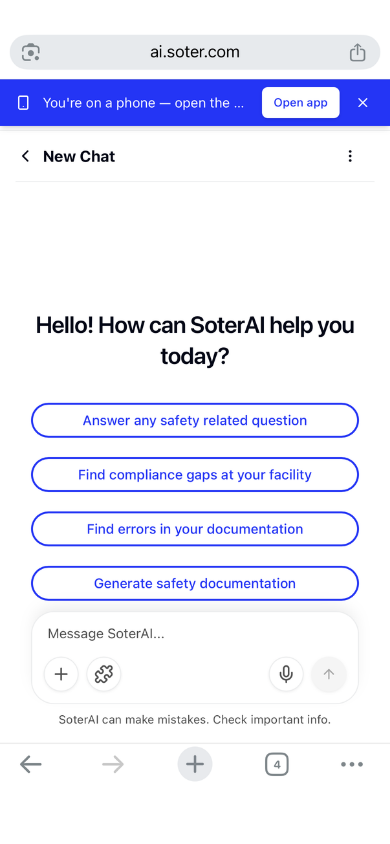
Tap the blue banner — do not skip this
Once you are logged in and have selected your workspace, you will see a blue banner across the top of the screen. Tap Open app on that banner. This loads the proper app version — you must do this before installing.
Make sure it looks like this
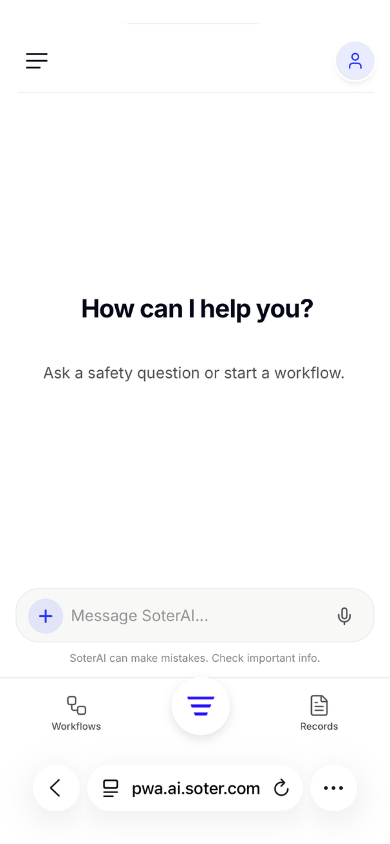
The app should fill the screen like this
You will see the SoterAI chat interface with a bottom nav bar. The address bar at the bottom will show pwa.ai.soter.com — this is correct. Only proceed to the next step once your screen looks like this.
Add to your home screen
Tap the three dots
Find the ... icon in the bottom toolbar, next to the address bar.
Tap the Share button
The square with an arrow pointing up — this opens the sharing menu.
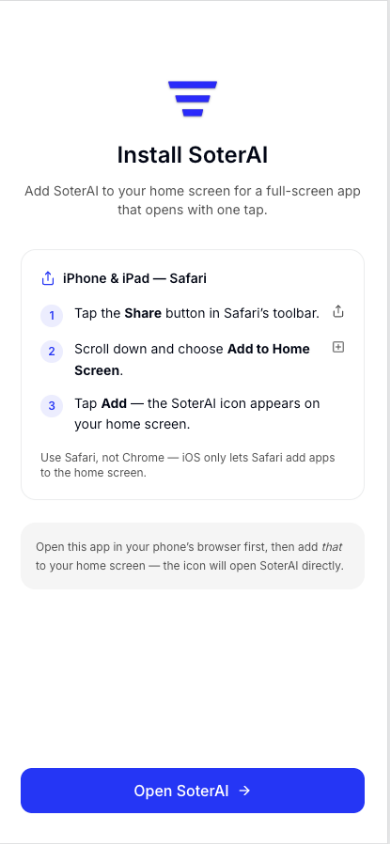
Scroll down and tap “Add to Home Screen”
It is near the bottom of the sharing menu — you may need to scroll down to find it.
Tap Add
The SoterAI icon will appear on your home screen.
Tap the three dots
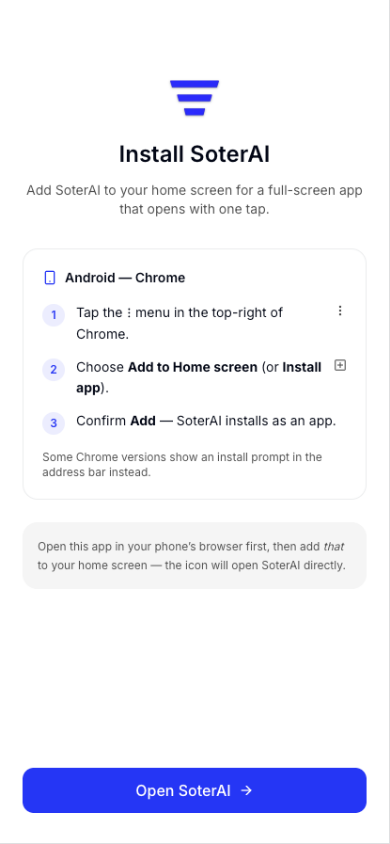
Find the ⋮ icon in the top-right corner of Chrome.
Tap “Add to Home screen”
You may see this labeled Install app on some versions of Chrome. Tap either option.
Confirm Add
A prompt will appear — tap Add to confirm. SoterAI installs as an app on your home screen.
Was this article helpful?