
Unified Actions View is live
You can now see every action assigned to you — across every workspace — in one place. The Actions page has been updated with three tabs: My Actions (This Workspace), All Actions (This Workspace), and the new My Actions (All Workspaces) view, giving individuals, managers, and multi-workspace users a single, unified overview of their tasks.
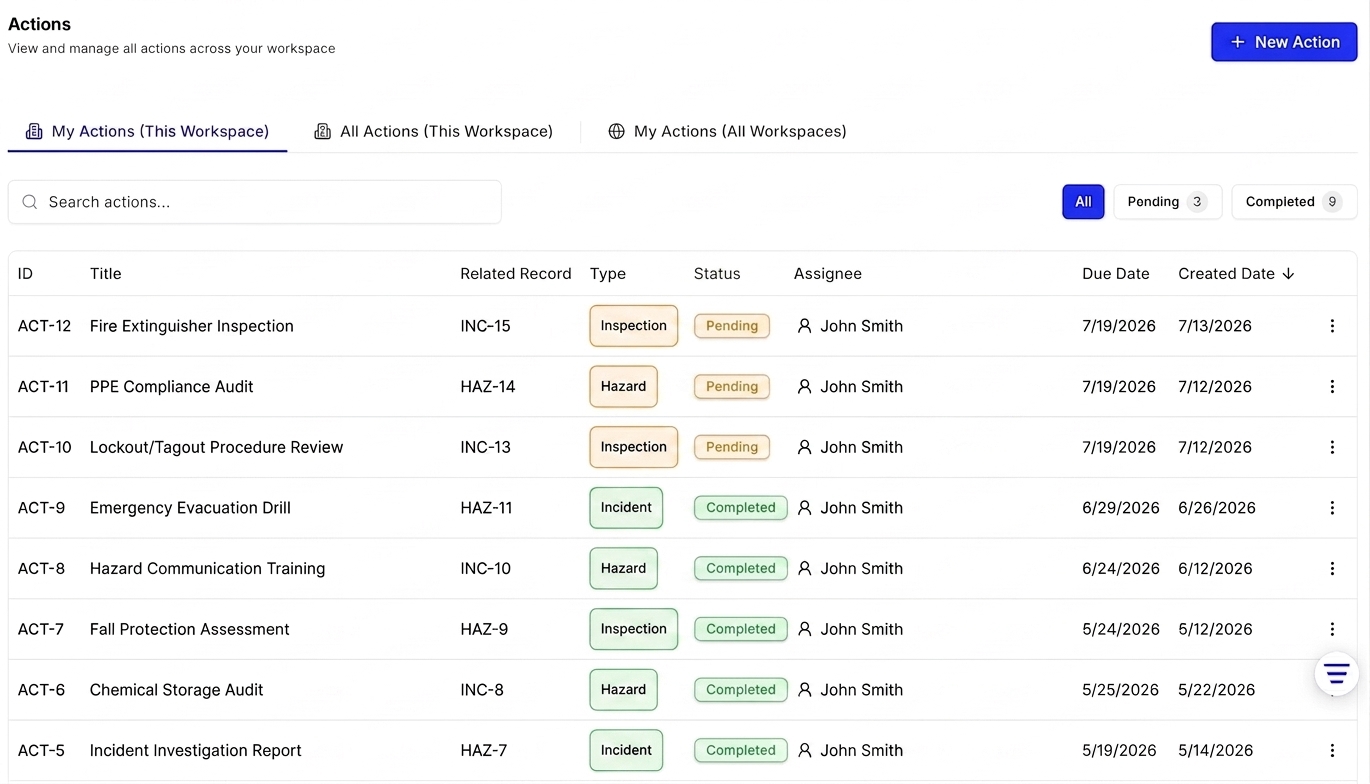
Unified Actions View is live
What it does
- My Actions (This Workspace) — your default view. Shows every action assigned to you in your current workspace, with full details: title, related record, type, status, assignee, created by, and due date. Filter by Pending or Completed, or search by title or ID.
- All Actions (This Workspace) — see every action across your entire current workspace, not just yours. Useful for managers and team leads tracking what's been assigned and to whom.
- My Actions (All Workspaces) — a global view of every action assigned to you across all workspaces in your organisation that you have permission to access. See pending and completed counts at a glance, and click any action to jump directly to it in its source workspace.
Who it's for
All SoterAI users — whether you're an individual contributor tracking your own tasks, a manager overseeing your team's workload, or someone working across multiple workspaces.
How to find it
Open the Actions tab from the left-hand navigation menu. The three tabs — My Actions (This Workspace), All Actions (This Workspace), and My Actions (All Workspaces) — are visible at the top of the page.
A few things to know
- The My Actions (All Workspaces) tab is read-only. To create, complete, edit, or reassign an action, open it in its source workspace.
- The My Actions (All Workspaces) view is scoped to your current organisation only — actions from other organisations won't appear.
- When someone assigns an action to you, you'll get an in-app notification with a direct link to the action, no matter which workspace it came from.
Further documentation
Have questions about the July 2026 release? Contact your account manager or reach out to our support team for personalised guidance.
Was this article helpful?